

Table of Contents
- 1.1 Client Review
- 1.2 Fact Find
- 1.3 Protection Options
- 1.4 Life
- 1.5 Income Protection
- 1.6 PMI
- 1.7 Submissions Only
- 1.8 File review outcome table
1.1 Client Review
How to create a client review and access it
Create a client contact:
- Client Contact Not in the System: An individual (New client) who is interested in getting a policy will need to be invited using the “Create new client contact” button under Organisation tab.
- Genistar Representative: If they are a representative in the system, you can search their name in the “Representative” tab and invite them as a client.
Create a new client review:
- All newly created client contacts will have an open client review automatically.
- If the client review is open and not submitted to the FSC, you CANNOT create a new client review.
- If it is closed, or has been submitted to the FSC, then you can open a new client review by clicking on the “Start new” button.
- Once you select “Yes” in the confirmation box, a new entry will be created.
- If there is already an open client review and you click on the “Start New” client review button, a yellow warning message will appear informing – “Cannot start a new review when there is one active, please close/finalise any reviews before continuing.”
Access client review:
- Once your client contact has been created, locate them on the client contact grid.
- Click on the client’s name which will direct you to their client review page.
- To access the client review(s), select the “Review History” tab as shown below.
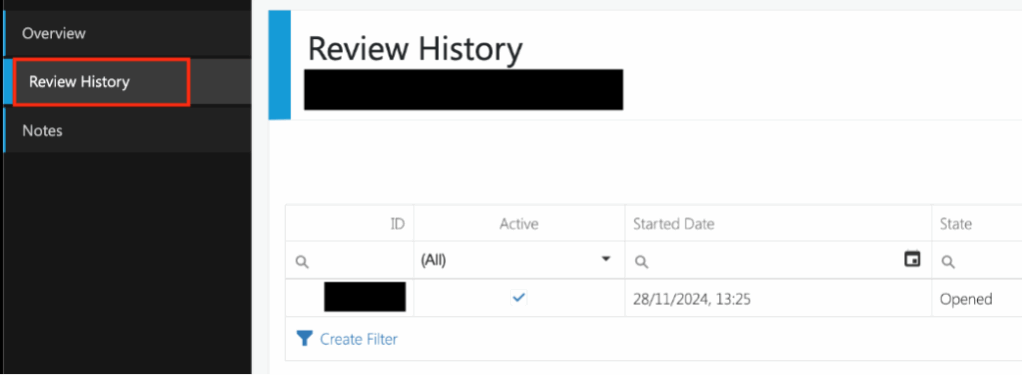
When you enter a client review page, there are three sections: Fact Find, Financial Plan and Protection Option. Every client review page will have 7 statuses to choose from:
- Opened – When Client review is open and unlocked.
- Abandoned – If the client review is left incomplete. Applications should be finalised within 45 days of creating the client in the system.
- Draft – When the details are entered in the Fact Find but not ready to be submitted yet.
- Completed – Application has been submitted by the servicing representative.
- Cancelled – If an application is cancelled by the client.
- Closed – When the active client review is no longer needed/client decides not to go ahead.
- Declined – If a client gets a decline when using Spectra/underwriting decision.
Rules: Can
- Client Review can be used to record client details, access Financial Plan and protection option selection. This will allow a clear audit trail.
- Servicing reps should be using this throughout the process of a client’s protection journey. Soft notes should be made for a clear and detailed audit trail.
- Only ONE client review per client can be open at any given time.
- The system will not allow you to open a new client review if there is an existing one open or not submitted.
- A client review should be submitted within 45 days of opening/starting the client review. This process is manual currently.
- If it takes more than 45 days to complete and submit the application to FSC, the client review should be closed, and a new one should be started. This is so we have the most up to date details of the clients.
- Once a client review has been submitted to the FSC, it must then also be updated by FSC with the policy number, premium and policy status details to be counted as completed.
- If an application takes longer than 2 months to be submitted/updated by FSC from the point of EVP approval date, then it will not show on Leader Boards. Reasons for not submitting/updating could be because of waiting on further information and/or it was reset and not resubmitted back to FSC.
- A client can have as many client reviews as required.
- Client’s circumstances may change and/or they might be up for a policy review.
- It is recommended that an annual review is done.
- A representative can submit life and PMI applications within the same client review by completing the additional PMI section in the Fact Find first.
Rules: Can’t
- A new client review cannot be opened if there is an existing open client review.
- Servicing rep should make sure to first complete and submit an open client review or close it when appropriate.
- The client review is locked as soon as the servicing rep has submitted it. Only the EVP can reset it at that point. Once the EVP has approved it, then only FSC can reset it.
- If the EVP is the servicing rep of the client and the client review has been submitted, then it can only be reset by the FSC.
- If the servicing representative has not completed their life competency, then they will not be able to access the client review and write a Vitality policy.
1.2 Fact Find
The Fact Find is completed during the first appointment and must be submitted for it to unlock the Financial Plan and Protection Option. If the servicing representative has completed and passed their Income Protection competency and Private Medical Insurance competency (currently only open to EVPs and nominated non-EVPs), relevant sections will appear in the Fact Find.
Rules: Can
- “Save” button will be available at the end of the Fact Find page when it’s unlocked.
- Any time the client review is unlocked or not submitted, any amendments made to Fact Find can be saved by clicking the button.
- “Submit” button must be clicked at the end of the Fact Find when it is initially being completed.
- Submit button will disappear once you have clicked on it the first time.
- Details from the previous Fact Find can be copied over when a new client review is started.
- The income protection section will only appear in the Fact Find if Income protection competency is completed. Then the section will need to be completed for this benefit to appear in the protection option later.
- Private Medical Insurance (PMI) section will only appear in the Fact Find if PMI competency is completed. Then the section will need to be completed for the option to build PMI quotes to appear in the protection option later.
- If there are any non-medical disclosures, like family medical history, use of recreational drugs and hazardous sports/activities mentioned on the ESD, please ensure the Fact Find has soft notes on the section with the question: “Are there any other disclosures, e.g. alcohol or drug-related?”
- Initial Disclosure Document (IDD) and Privacy Notice, must be sent to the client prior to the first appointment. Please note, this must be sent out prior to every new client review, before the first appointment. Please add a note in the Fact Find and it must be dated. Acceptable: Dates before EVP approval date.
Rules: Can’t
- If the Fact Find is not completed and the “submit” button is not clicked initially, the Protection Options section will not unlock.
- Once the application has been submitted by the servicing rep, the Fact Find will be locked.
- If the application is in the EVP approval queue or if it is with the FSC, it will need to be reset for the Fact Find to be unlocked.
- Details like D.O.B cannot be edited once the client has been created in the system. This is locked and can only be edited by requesting it from the FSC.
- You cannot edit the name of the client once the client has been created in the system. It is very important to get the client’s legal name correct. This will be locked and can only be edited by requesting it from the FSC.
Selecting the quote
Quote selection option can be accessed after the quote is built. Please use the three dots and click on select quote.
- Client – only one client is created on the Fact Find
- Client ONLY – both client and partner are on the Fact Find, but only the client wants a policy.
- Partner ONLY – both client and partner are on the Fact Find, but only the partner wants a policy.
- Both – both client and partner are on the Fact Find, and both would like either JOINT or Both (separate) policies.
You do not have to select quotes for client and partner from the same Option. They can be selected from two different Options. For example, Client quote selection from Option A and Partner quote selection from Option B, as long as the selected quotes match the final SOP.
Submitting the quote
Before submitting the application, you will be directed to do the following:
- Upload the necessary documents
- If it’s a split sale, add the split sale rep’s details
- Finalise the submission
Documents to upload
- Final Statement of Price (SOP)
- Electronic Submission Document (ESD)
Rules: Can
- You only need to build the final quote (the one the client has chosen).
- The servicing rep will only need to illustrate the final selected quote in Protection Options.
- If it is a multi-benefits quote, meaning a client has more than one quote being submitted at any one time, they must be built and selected separately in the protection option.
- It is the servicing rep’s responsibility to make sure to build quotes that match the final Statement of Price (SOP) document.
- This is important as this detail is used to create Statement of Demands and Needs (SODAN) using AI internally.
- You can select and deselect each quote. This option is available once quote is built.
- The servicing rep will need to upload only the final SOP that the client has chosen. Please leave a soft note in the Fact Find to confirm the sales journey of the client.
- The Income Protection benefit will appear in the benefit list if the IP section is completed in the Fact Find.
- The Private Medical Insurance (PMI) section will only appear in the protection option separately. Quotes must be built and selected separately from the life quotes. If it is not selected, the PMI application will not come through to the FSC pipeline.
Rules: Can’t
- You cannot build more than 7 standard and 7 Optimiser quotes per client at any given time.
- This is the maximum number allocated but usually that many quotes are not required.
- Cannot delete any built quotes. You can edit the already built quotes but cannot delete them.
- No two quotes can have the same quote number. Duplicate quote numbers used will be flagged. You can edit the quote number manually when building the quote using the manual option.
1.3 Protection Options
This is where the quote(s) will need to be built. The servicing rep should sit with the client and get a quote in Vitality Advisor Hub first. Upon the client’s confirmation, the final quote should be built in the Protection Options section in Genistar online.
Please note that the Statement of Demands and Needs (SODAN) is created from the details built on the protection option which is why it is important that the quotes match.
Building the quote
The first stage of the process is to build the final quote in the protection option that the client has selected. In the scenario when a client and their partner are interested in taking policies, please note, there are two options available currently:
- JOINT – When both client and partner have a joint application and are included on one SOP.
- BOTH – SEPARATE – When a client and their partner want to get separate policies or if only the client or just the partner want to get a policy, you can select this option.
Manual quote building option: This option is still available should you need to use it. As our AI quote builder is still learning, we advise you to check the built quote details against the SOP. You will need to use this option for JOINT SOP with Children SIC, Client ONLY & Partner ONLY as well.
Quote number already in use: If a quote number is already in use, the system will flag the error. In this case, please use the same quote number and you can manually edit the quote number by changing the last couple of digits. You can leave a note for FSC to be aware of this on the Fact Find.
A quote is already in the Protection Option page: If a quote was previously built and is present on the protection option, you can either edit it or you can build a new quote.
Multi-benefits quotes (MBQ) application
Since the launch of Vitality’s new products, there has been a change in the Statement of Price (SOP). In order to have consistency in the way the Protection Option is built to match the SOP, please use the information in this document as a guideline to help you make sure it is done correctly.
- Vitality Select: This benefit is automatically applied on all standard quotes and has no fee.
- Vitality Plus: This benefit will be applied when the quote is Optimised and is over £45. There is a fee of £4.75 added on to the premium. For MBQs, this benefit must be built on ONLY ONE of the quotes if it is listed on the top of the SOP summary page.
- Vitality Select & Vitality Plus for Children: These benefits are applied when Child Serious Illness Cover benefit is added. If this benefit appears on the SOP you have downloaded, please make sure it is also built in the Protection Option. You will need to build this manually as the quote builder is unable to read the children’s names from the SOP.
Selecting the quote
Quote selection option can be accessed after the quote is built. Please use the three dots and click on select quote.
- Client – only one client is created on the Fact Find
- Client ONLY – both client and partner are on the Fact Find, but only the client wants a policy.
- Partner ONLY – both client and partner are on the Fact Find, but only the partner wants a policy.
- Both – both client and partner are on the Fact Find, and both would like either JOINT or Both (separate) policies.
You do not have to select quotes for client and partner from the same Option. They can be selected from two different Options. For example, Client quote selection from Option A and Partner quote selection from Option B, as long as the selected quotes match the final SOP.
Submitting the quote
Before submitting the application, you will be directed to do the following:
- Upload the necessary documents
- If it’s a split sale, add the split sale rep’s details
- Finalise the submission
Documents to upload
- Final Statement of Price (SOP)
- Electronic Submission Document (ESD)
Rules: Can
- You only need to build the final quote (the one the client has chosen).
- The servicing rep will only need to illustrate the final selected quote in Protection Options.
- If it is a multi-benefits quote, meaning a client has more than one quote being submitted at any one time, they must be built and selected separately in the protection option.
- It is the servicing rep’s responsibility to make sure to build quotes that match the final Statement of Price (SOP) document.
- This is important as this detail is used to create Statement of Demands and Needs (SODAN) using AI internally.
- You can select and deselect each quote. This option is available once quote is built.
- The servicing rep will need to upload only the final SOP that the client has chosen. Please leave a soft note in the Fact Find to confirm the sales journey of the client.
- The Income Protection benefit will appear in the benefit list if the IP section is completed in the Fact Find.
- The Private Medical Insurance (PMI) section will only appear in the protection option separately. Quotes must be built and selected separately from the life quotes. If it is not selected, the PMI application will not come through to the FSC pipeline.
Rules: Can’t
- You cannot build more than 7 standard and 7 Optimiser quotes per client at any given time.
- This is the maximum number allocated but usually that many quotes are not required.
- Cannot delete any built quotes. You can edit the already built quotes but cannot delete them.
- No two quotes can have the same quote number. Duplicate quote numbers used will be flagged. You can edit the quote number manually when building the quote using the manual option.
1.4 Life
Process: How to submit a Vitality Life application?
- Complete the Fact Find.
- Present the Financial Plan to the client.
- Build a quote in Vitality Advisor Hub.
- Build Protection Option in Genistar online.
- Submit the application for review.
- EVP to review and approve. If the EVP is submitting personal business, this will be sent to the FSC directly.
- The FSC will review and submit the application in the hub.
- The FSC will update the policy number in Genistar online.
Rules: Can
- A representative CAN write their own children’s policy.
- A representative CAN submit Life and PMI applications at the same time. (Please see the client review can and can’t section.)
- A Fact Find must be filled out including the PMI section, then both Life and PMI quotes must be selected before submitting the applications.
- EVP approval date is the date used as the “submission date” for counting business in a Genistar month: This will affect promotions and contests. Commission is paid at the representative’s level on the “submission date”.
- This date is an important marker. For EVP level and above the date will be at the point of submission as they do not need any approval, it will go through to FSC directly.
- A Submission Only application is available on Life applications.
- Submission Only applications should be kept at no more than 5% of the representative’s total submissions per month.
Rules: Can’t
- A representative CANNOT write their spouse’s policy.
- A representative CANNOT write their own policy. If any are found during FSC checks, they will be reset for a new servicing rep to be allocated.
- A representative CANNOT be the split sale rep on their own or their spouse’s policy.
- A representative’s downline CANNOT write their upline’s policy. This is because the representative will be earning commission override on their downline.
1.5 Income Protection
Process: How to submit a Vitality Income Protection application
- The servicing rep must complete Income Protection competency.
- Complete a Fact Find with Income Protection Section filled.
- Present the Financial Plan (FP) to the client.
- Build a quote in the Vitality Advisor Hub.
- Build a Protection Option in Genistar online.
- Submit the application for review.
- EVP to review and approve. If the EVP submits personal business, this will be sent to the FSC directly.
- FSC to review and submit the application in the hub.
- FSC will update the policy number in Genistar online.
Rules: Can
- Income Protection benefit can be in a quote by itself or part of a comprehensive quote with Serious Illness Cover (SIC) and Life benefits.
- In both cases, the IP section in the Fact Find must be completed. This will contain questions that are IP related and show that the client is taking on adequate cover.
- There needs to be a serious justification for not having “indexation” on this type of cover.
Rules: Can’t
- The Protection option will not allow you to build a quote with IP if the IP section in the Fact Find is not completed.
- Income protection applications cannot be Submissions Only.
1.6 PMI
Process: How to submit a Vitality Private Medical Insurance application
- Complete a Fact Find.
- Present the Financial Plan (FP) to the client.
- Build a quote in the Vitality Health Hub.
- Download the personalised brochure.
- Build the Protection Option in Genistar online.
- Submit the application for review.
- EVP submitting personal business will submit to FSC directly.
- FSC to review and inform the EVP of status.
- EVP to submit the application in the Health Hub.
- Enter the PMI policy/health number in the pipeline.
Rules: Can
- Can a representative write their own spouse’s PMI policy? Currently, yes, but the FSC should contact the policy holder, confirm their desire to have the policy, and log it internally.
- Can a representative write their children’s PMI policy? Currently, yes.
- A representative can submit both Life and PMI application in one client review. (Please see the client review can and can’t section.)
- A Fact Find must be filled out including the PMI section and both Life and PMI quotes must be selected before submitting the applications.
- EVP submission date is used as a marker for commission purposes. (Only available for EVPs or non-EVPs with PMI competency.)
- For EVPs writing personal business, the submission date is the date of submission to the FSC, as they do not need any approval. It will go through to the FSC directly.
Rules: Can’t
- A representative cannot write their own PMI policy. If there are any found during FSC checks, they will be reset for a new servicing rep to be assigned.
- PMI cannot be submitted as Submission Only. This type of policy is higher risk so we must obtain full Fact Find details from the client prior to submission.
1.7 Submissions Only
Submissions Only type of applications has a limited Fact Find section. These types of applications should be no more than 5% of the representative’s total submission number per month.
Process: How to submit a Vitality Submissions Only application
- Select Submissions Only on the Fact Find.
- Build a quote in Vitality Health Hub.
- Build the Protection Option in Genistar Online.
- Submit the application for review.
- EVP to review and approve. If an EVP submits personal business, this will be sent to the FSC directly.
- FSC to review and submit the application in the Hub.
- FSC will update the policy number in Genistar Online.
Rules: Can
- Vitality Life applications can be submitted as Submission Only.
- These types of applications should be no more than 5% of the representative’s total submission number per month.
Rules: Can’t
- PMI cannot be submitted as Submission Only. This type of policy is higher risk so we must obtain full Fact Find details from the client prior to submission.
- Income Protection ONLY applications cannot be submitted as Submission Only. IP questions must be completed, and this is only in the full Fact Find.
1.8 File review outcome table
Compliance File Review
Fact Find vs ESD
| Check Area | Criteria / Issue | Action | Additional Action |
| SmartSearch | SmartSearch fail | Pending – awaiting additional documentation | Servicing rep/EVP to provide additional documents on the ticket raised by FSC. |
| Affordability | FGP in minus (negative balance) with no fact-find explanation | Reset | Servicing rep/EVP to add notes on the Fact Find reasoning for negative balance. |
| Affordability | Affordability unclear | Pending – awaiting additional information (may be reset if unresolved) | FSC will raise a ticket for confirmation on further details regarding affordability. Servicing rep/EVP to confirm prior to FSC proceeding. |
| Client & Partner Residency | Residency not set or marked as “No” | Reset | Servicing rep/EVP to amend to ‘Yes’ in the Fact Find. |
| Dependant Residency | Residency not set | Reset | Servicing rep/EVP to amend to ‘Yes’ in the Fact Find. |
| First Appointment date | First appointment date is not recorded in the Fact Find (DD/MM/YYYY) OR (DD/MM/YY) | Pending – awaiting confirmation | Please confirm the First appointment date with the EVP before proceeding. Inform the EVP to enter the date going forward. |
| IDD & Date Given | Not recorded in fact-find or DD/MM format | Reset | Please enter in the Fact Find notes – Date IDD & Privacy Notice was sent. These documents must be issued before the first appointment date. Acceptable: no more than a month prior to the first appointment date. |
| Privacy Notice & Date Given | Not recorded in fact-find or DD/MM format | Reset | Please enter in the Fact Find notes – Date IDD & Privacy Notice was sent. These documents must be issued before the first appointment date. Acceptable: no more than a month prior to the first appointment date. |
| Optimiser & Indexation | Not discussed or not recorded in fact-find | Reset | Servicing rep/EVP to add a note in the Fact Find. |
| Product Selection | Reasons for product choice not recorded in fact-find | Reset | Servicing rep/EVP to add a note in the Fact Find. |
| Product Selection | Reasons unclear or not as detailed | Pending | Servicing rep/EVP to add clear and detailed note in Fact Find. |
| Vulnerabilities | Marked as “Yes” with no supporting information | Pending – awaiting further information | FSC will raise a ticket for confirmation on further details regarding vulnerabilities marked ‘Yes’. Servicing rep/EVP to confirm the details before proceeding. |
| Fact-Find Validity | Fact-find older than 6 months from EVP approval date | Reset | The Fact find (Client Review) needs to be no older than 6 months old the application will be reset and sent back to the EVP. New Client Review must be done. |
| Rewrites | Rewrite details and reason unclear | Reset | Servicing rep/EVP to add clear and detailed note in Fact Find. |
| Writing Rep / Split Sale | Errors identified | Reset | A representative CANNOT be the split sale rep on their own or their spouse’s policy. A representative’s downline CANNOT write their upline’s policy. This is because the representative will be earning commission override on their downline. |
| High Life Cover | Rationale unclear | Reset or Pending | If the client has a high amount of life cover with no justified reason the application will be reset. Clear detailed notes will need to be added to the Fact Find. |
| High SIC Amount | Rationale unclear | Reset or Pending | If the client has a high amount of SIC cover with no justified reason the application will be reset. Clear detailed notes will need to be added to the Fact Find. |
| Medical Disclosures / SPECTRA | Further information required | Pending | FSC will raise a ticket to confirm details regarding initial underwriting status and potential risk of decline or deferral. |
| Policy Start date | Forwarded dated start date is more than 3 months from EVP approval date. | Reset or Pending | Please ensure that the policy start date is either immediately or no more than 3 months forward dated from EVP approval date in Genistar online. If the date section is left blank in the Vitality DCF, FSC team will carry on but please ensure the client adds a start date as soon as possible so they can be covered. |
| Fact Find | ESD | Action | Additional Action | |
| First & Last Name | Same as ESD | Same as Fact Find | Approved | |
| First & Last Name | Correct | Incorrect | Approved – amendment required | Servicing rep/EVP to amend in the Advisor hub. Please attach updated ESD in the ticket. |
| First & Last Name | Incorrect | Correct | Reset | Servicing rep/EVP to amend in Fact Find. |
| D.O.B | Same as ESD | Same as Fact Find | Approved | |
| D.O.B | Correct | Incorrect | Approved – amendment required | Servicing rep/EVP to amend in the Advisor hub. May impact premium – if the premium does change, we will need to reset this so you can build the updated quote and attach updated ESD. If there is no change to the premium – Please attach updated ESD in the ticket. |
| D.O.B | Incorrect | Correct | Reset | Servicing rep/EVP to amend in Fact Find. |
| Occupation | Same/similar as ESD | Same/similar as Fact Find | Approved | Occupations should be same if not similar. |
| Occupation | Correct | Incorrect | Approved – amendment required | Servicing rep/EVP to amend in the Advisor hub. Please attach updated ESD in the ticket. |
| Occupation | Incorrect | Correct | Reset | Servicing rep/EVP to amend in the Fact Find. |
| Phone Number | Same as ESD | Same as Fact Find | Approved | |
| Phone Number | Correct | Incorrect | Approved – amendment required | Servicing rep/EVP to amend in the Advisor hub. Please attach updated ESD in the ticket. |
| Phone Number | Incorrect | Correct | Reset | Servicing rep/EVP to amend in Fact Find. |
| Email Address | Same as ESD | Same as Fact Find | Approved | |
| Email Address | Correct | Incorrect | Approved – amendment required | Servicing rep/EVP to amend in the Advisor hub. Please attach updated ESD in the ticket. |
| Email Address – Client | Incorrect | Correct | Approved – amendment required | Servicing rep/EVP to amend in the Fact Find. |
| Email Address – Partner | Incorrect | Correct | Reset | Servicing rep/EVP to amend in the Fact Find. |
| Have you been a UK resident for 6 months (at least 183 days)? | Yes | N/A | Approved | |
| Have you been a UK resident for 6 months (at least 183 days)? – Dependents | Yes | N/A | Approved | |
| Have you been a UK resident for 6 months (at least 183 days)? | No | N/A | Reset | Servicing rep/EVP to amend in Fact Find. |
| Have you been a UK resident for 6 months (at least 183 days)? – Dependents | No | N/A | Reset | Servicing rep/EVP to amend in Fact Find. |
| Address | Same as ESD | Same as Fact Find | Approved | First line of the address and postcode must match. |
| Address | Correct | Incorrect | Approved – amendment required | Servicing rep/EVP to amend in the Advisor hub. Please attach updated ESD in the ticket. |
| Address | Incorrect | Correct | Reset | Servicing rep/EVP to amend in Fact Find. First line of the address and postcode must match. |
| Smoker status | Same as ESD | Same as Fact Find | Approved | |
| Smoker status | Correct | Incorrect | Approved – amendment required | Servicing rep/EVP to amend in the Advisor hub.May impact premium. Please attach updated ESD in the ticket. |
| Smoker status | Incorrect | Correct | Reset | Servicing rep/EVP to amend in Fact Find. |
| Smoker status | Conflicting answer or discrepancy | Correct | Reset | Servicing rep/EVP to close the client review. DO NOT use the transfer data feature to avoid old information pulling through to the new Fact Find. |
| Medical Disclosure | Same as ESD | Same as Fact Find | Approved | Family medical history does not count for personal medical history. Please add this on to ‘Other disclosures’ section. |
| Medical Disclosure | States ‘No’ | States ‘Yes’ | Approved | FSC will be approve this and make an internal note. |
| Medical Disclosure | States ‘Yes’ – Correct | States ‘No’ | Reset | FSC will confirm this first and if Fact Find is correct, it will be reset. Servicing rep/EVP to amend in ESD. Please attach updated ESD before resubmission. |
| Any other disclosures (Drug related, Hazardous activities, Travel/residing abroad, family medical history) | Enter details disclosed on ESD | States ‘Yes’ | Approved | Please use this section in the Fact Find to disclose ONLY other disclosures like drug related, Hazardous activities, Travel/residing abroad, family medical history. |
| Any other disclosures (Drug related, Hazardous activities, Travel/residing abroad, family medical history) | States ‘No’ | States ‘Yes’ | Approved | Please use this section in the Fact Find to disclose ONLY other disclosures like drug related, Hazardous activities, Travel/residing abroad, family medical history. FSC will be approve this and make an internal note. |
| Any other disclosures (Drug related, Hazardous activities, Travel/residing abroad, family medical history) | States ‘Yes’ – Correct | States ‘No’ | Reset | Please use this section in the Fact Find to disclose ONLY other disclosures like drug related, Hazardous activities, Travel/residing abroad, family medical history. FSC will confirm this first and if Fact Find is correct, it will be reset. Servicing rep/EVP to amend in ESD.Please attach updated ESD before resubmission. |
| Medication | Enter details disclosed on ESD | States ‘Yes’ | Approved | |
| Medication | States ‘No’ | States ‘Yes’ | Approved – amendment required | FSC will be approve this and make an internal note. |
| Medication | States ‘Yes’ – Correct | States ‘No’ | Reset | FSC will confirm this first and if Fact Find is correct, it will be reset. Servicing rep/EVP to amend in ESD. Please attach updated ESD before resubmission. |
| Trust | N/A | Selected ‘Yes’ and details must be entered | Approved | If details are entered, FSC will continue as is. |
| Trust | N/A | Selected ‘No’ | Approved | FSC will continue as is. |
| GP details | N/A | Registered GP | Approved | Usually, registered GP are named as surgery, health centre, hospital, clinic etc. Please note, client must be registered on as a patient on the disclosed GP. |
| GP details | N/A | Not registered GP | Approved – amendment required | Usually, registered GP are named as surgery, health centre, hospital, clinic etc. Please note, client must be registered on as a patient on the disclosed GP. Servicing rep/EVP to amend in the Advisor hub. Please attach updated ESD in the ticket. |
| Payment details | N/A | Payment details are entered correctly online – Paperless | Approved | |
| Payment details | N/A | Paper with signature is selected | Approved | Please input note in the Fact Find that you have sent the Direct Debit mandate to the client. |
| Access to Medical Records Act – Would you like to grant online consent on behalf of your client? | N/A | Selected ‘Yes’ | Approved | |
| Access to Medical Records Act – Would you like to grant online consent on behalf of your client? | N/A | Selected ‘No’ | Approved – amendment required | EVP must select ‘Yes’ before FSC can fully submit. Please attach updated ESD in the ticket. |
| Policy start date | N/A | Start date left blank | Approved – action required after submission | FSC will select ‘Related to mortgage – New. Start date will need to be added by the servicing rep/EVP after submission by FSC. |
| Accepted on Special terms consent box | N/A | Must be ticked | Approved | ONLY FSC action required |
| Referred start date declaration – Final submission page in the hub | N/A | Unticked | Approved | ONLY FSC action required |
| First Appointment date | Enter first appointment date in the Fact Find (DD/MM/YYYY) OR (DD/MM/YY) | N/A | Approved | Servicing rep/EVP to add note in Fact Find. |
| First Appointment date | First appointment date is not recorded in the Fact Find (DD/MM/YYYY) OR (DD/MM/YY) | N/A | Pending – awaiting confirmation | Please confirm the First appointment date with the EVP before proceeding. Inform the EVP to enter the date going forward. |
| IDD & Privacy Notice | Sent confirmation and dated (DD/MM/YYYY) OR (DD/MM/YY) | N/A | Approved | Please enter in the Fact Find notes – Date IDD & Privacy Notice was sent. These documents must be issued before the first appointment date. Acceptable: no more than a month prior to the first appointment date. |
| IDD & Privacy Notice – *Submissions Only | Sent confirmation and dated (DD/MM/YYYY) OR (DD/MM/YY) | N/A | Approved | Please enter in the Fact Find notes – Date IDD & Privacy Notice was sent. These documents must be issued before the first appointment date. Acceptable: no more than a month prior to the first appointment date. |
| IDD & Privacy Notice | No notes or DD/MM format | N/A | Reset | Please enter in the Fact Find notes – Date IDD & Privacy Notice was sent. These documents must be issued before the first appointment date. Acceptable: no more than a month prior to the first appointment date. |
| IDD & Privacy Notice | Date is older than month from the first appointment date (DD/MM/YYYY) OR (DD/MM/YY) | N/A | Approved – action required | FSC to email EVP/servicing rep to send it out as soon as possible.FSC will proceed. |
| IDD & Privacy Notice – *Submissions Only | No notes/date is older than month of the first appointment date (DD/MM/YYYY) OR (DD/MM/YY) | N/A | Reset | Please enter in the Fact Find notes – Date IDD & Privacy Notice was sent date. These documents must be issued before the first appointment date. Acceptable: no more than a month prior to the first appointment date. |
| IDD & Privacy Notice *Submissions Only | Date is older than month from the first appointment date (DD/MM/YYYY) OR (DD/MM/YY) | N/A | Approved – action required | FSC to email EVP/servicing rep to send it out as soon as possible. FSC will proceed. |
| Previous/existing policy | Reason for taking new policy in detail | Cancelling/replacing existing policy details | Approved | Please add thorough details and reason for this under Current Life Cover section of Fact Find. If it can be done through servicing amendment, please action this accordingly instead of a full rewrite. |
| Previous/existing policy | No | Cancelling/replacing existing policy details | Reset | Servicing rep/EVP to add thorough details and reason for this under Current Life Cover section of Fact Find. If it can be done through servicing amendment, please action this accordingly instead of a full rewrite. |
*Submissions Only – This is not available for PMI. Please continue to complete Fact Find with adequate notes and PMI section questions.
Additional Checks
| Genistar Online | Vitality Advisor Hub | Action | Additional Action | |
| Servicing Rep – License | Licensed | N/A | Approved | |
| Servicing Rep – License | Not Licensed | N/A | Reset | Servicing rep must complete Life competency before FSC can proceed. Servicing rep/EVP can use the same client review. Once resubmitted back to FSC, Field Service Team will escalate this to Compliance team for second review before proceeding. |
| Servicing Rep – Business writer | Sames as Vitality Advisor Hub | Sames as Genistar Online | Approved | |
| Servicing Rep -Business writer | Correct | Incorrect | Approved – amendment required | Rep must have the client and application in the Advisor Hub before FSC can submit it. Please attach updated ESD in the ticket. |
| Servicing Rep – Business writer | Incorrect | Correct | Reset | EVP must change the Servicing Rep in Genistar Online. |
| Client Review | EVP approval date is within six months of Fact Find started date. | N/A | Approved | |
| Client Review | EVP approval date is within six months of Fact Find started date. | N/A | Reset | Servicing rep/EVP will need to start a new client review. |
| Policy Start Date | Start date in the Protection option is immediately or no more than 3 months in advance from the EVP approval date. | Start date in the Vitality hub is immediately or no more than 3 months in advance from the EVP approval date or left blank. | Approved | FSC will carry on with the start date entered. FSC will keep a record of the start date page. If it is left blank in the Vitality hub, FSC will select ‘Related to mortgage – New. Start date will need to be added by the servicing rep/EVP after submission by FSC. |
Split sale reps
- Please note, this is the responsibility of the servicing rep and EVP to ensure that the correct spilt sale rep details are entered.
- Once FSC reviews, fully submits the applications and updates Genistar online, the split sale rep cannot be amended. Any related commission will be paid out to the split sale rep that is entered at the time.
- We recommend, please DO NOT NTU or cancel any submitted application, if you forgot to add split sale rep details in Genistar online.
Protection Options VS Statement of Price
It is important that the protection options are correct and matching the final quote selected by the client. The details in the protection options help create Statement of Demands and Needs which are sent to the client as soon as the application is submitted by FSC.
| SOP/Quote | Protection Options | Cover Amount | Cover Term | Premium | |
| Life Cover | Life Cover | Life Cover | Sames as SOP | ||
| Life Cover with Serious Illness Cover 1X | Life Cover with Serious Illness Cover 1X | Life Cover with Serious Illness Cover 1X | Same as SOP | ||
| Life Cover with Serious Illness Cover 2X | Life Cover with Serious Illness Cover 2X | Life Cover with Serious Illness Cover 2X | Same as SOP | ||
| Life Cover with Serious Illness Cover 3X | Life Cover with Serious Illness Cover 3X | Life Cover with Serious Illness Cover 3X | Same as SOP | ||
| Serious Illness Cover 1X | Serious Illness Cover 1X | Serious Illness Cover 1X | Same as SOP | ||
| Serious Illness Cover 2X | Serious Illness Cover 2X | Serious Illness Cover 2X | Same as SOP | ||
| Serious Illness Cover 3X | Serious Illness Cover 3X | Serious Illness Cover 3X | Same as SOP | ||
| Life Cover with Premium Step | Life Cover with Premium Step | Life Cover with Premium Step | Same as SOP | ||
| Child Serious Illness Cover 1X | Child Serious Illness Cover X1 | Child Serious Illness Cover X1 | Same as SOP | Match the longest term of the adult cover term | Same as SOP |
| Child Serious Illness Cover 2X | Child Serious Illness Cover 2X | Child Serious Illness Cover 2X | Same as SOP | Match the longest term of the adult cover term | Same as SOP |
| Child Serious Illness Cover X3 | Child Serious Illness Cover X3 | Child Serious Illness Cover X3 | Same as SOP | Match the longest term of the adult cover term | Same as SOP |
| Income Protection | Income Protection Cover | Income Protection Cover | Same as SOP | ||
| Waiver of Premium on Incapacity | Waiver of Premium on Incapacity | Waiver of Premium on Incapacity | N/A | Same as SOP | Same as SOP |
| Vitality Select | Vitality Select | Vitality Select | N/A | Annually Renewable | £0.00 |
| Vitality Plus | Vitality Plus | Vitality Plus | N/A | Annually Renewable | £5.50 |
| Vitality Select for Children – Please see section below for more information. | Vitality Select for Children | Vitality Select for Children | N/A | Annually Renewable | £0.00 |
| Vitality Plus for Children – Please see section below for more information. | Vitality Plus for Children | Vitality Plus for Children | N/A | Annually Renewable | £0.00 |
| Optimiser | Optimiser | Optimiser | N/A | Annually Renewable | £0.00 |
| Accident & Fracture Cover | Accident & Fracture Cover | Accident & Fracture Cover | N/A | Same as SOP | £7.50 |
Multi-benefits quotes (Menu plan)
Please note, if the quote is multi-benefits quotes (Menu plan) where more than one quote is being created and applied at the same time for a client, each quote must be built and selected separately in the Protection Options.
- Optimiser – will be indicated for each quote separately. Please ensure ONLY add Optimiser to the quote that it applies to.
- Vitality Plus – will appear on the first page of the quote under Vitality Programme Membership section. Please ensure it is added to just one of the quotes in the protection options. If you add Vitality Plus on other remaining quotes, this will be reset. Additionally, you DO NOT need to add Vitality Select to remaining quotes.
- Vitality Select – will appear on the first page of the quote under Vitality Programme Membership section. Please ensure it is added to at least one or all the quotes in the protection options.
- Please note, Vitality Select and Vitality Plus cannot be added to a quote at the same time.
- Vitality Plus for Children – If Child Serious Illness Cover is selected in the quote and names are entered, it will appear in the SOP. It will also appear on the first page of the quote under Vitality Programme Membership section on multi-benefits quote (Menu Plan). If so, please add the Vitality Plus for Children in the protection options accordingly.
- Vitality Select for Children – If Child Serious Illness Cover is selected in the quote and names are entered, it will appear in the SOP. It will also appear on the first page of the quote under Vitality Programme Membership section on multi-benefits quote (Menu Plan). If so, please add the Vitality Select for Children in the protection options accordingly.
Joint Application
Please note, if it is a joint application, then the protection option must be built in the following manner:
Step 1: Add quote
Step 2: Who is this for? – Both – Joint and for manual quote builder, making the quote numbers the same for client and partner.
If you initially choose to build quote, Who is this for? – Both – Separate, then you will need to re-build a new quote from the start by following Step 1 and 2 above.
If the quote number has already been used, please change last two digits for both client and partner so it’s the same quote number.
There are two options to building the quote:
Option 1: You can either choose to build the benefit premium Same as SOP just in client’s protection option and leave the partner’s protection option with benefit premium as £0.00.
Option 2: Alternatively, you can build the protection option for each with half of the benefit premium. This is will then makes sure that the total premium of the joint cover is the same as the SOP.
For example:
Option 1:
| Client | SOP/Quote | Protection Options | Cover Amount | Cover Term | Premium |
| Life Cover | Life Cover | Life Cover | £200,000 | 30 Years | £25.00 |
| Vitality Select | Vitality Select | Vitality Select | N/A | Annually Renewable | £0.00 |
| Partner | SOP/Quote | Protection Options | Cover Amount | Cover Term | Premium |
| Life Cover | Life Cover | Life Cover | £200,000 | 30 Years | £0.00 |
| Vitality Select | Vitality Select | Vitality Select | N/A | Annually Renewable | £0.00 |
Option 2: Recommended
| Client | SOP/Quote | Protection Options | Cover Amount | Cover Term | Premium |
| Life Cover | Life Cover | Life Cover | £200,000 | 30 Years | £12.50 |
| Vitality Select | Vitality Select | Vitality Select | N/A | Annually Renewable | £0.00 |
| Partner | SOP/Quote | Protection Options | Cover Amount | Cover Term | Premium |
| Life Cover | Life Cover | Life Cover | £200,000 | 30 Years | £12.50 |
| Vitality Select | Vitality Select | Vitality Select | N/A | Annually Renewable | £0.00 |
Version Control
| Section | Who | Date |
| File review outcome table – Additional Checks | Tapashya Sunuwar | 08.06.2026 |
| File review outcome table – Medical Disclosure, Other Disclosure and Medication | Tapashya Sunuwar | 14.08.2026 |